
An I2C HID Device is usually an input device—such as a touchpad, touchscreen, keyboard, or sensor—that communicates with Windows using the I2C (Inter-Integrated Circuit) bus and the HID (Human Interface Device) standard. In Device Manager, you’ll typically find it under Human Interface Devices.
Windows includes built-in support for HID over I2C through Microsoft’s HIDI2C.sys driver. However, your PC may also depend on manufacturer-specific drivers for the I2C controller, chipset, touchpad, touchscreen, or other related hardware.
If your I2C HID Device isn’t working, has disappeared from Device Manager, or shows an error such as Code 10, the problem may be caused by a missing, outdated, incompatible, or incorrectly configured driver.
This guide shows you how to find, download, install, and troubleshoot I2C HID Device drivers in Windows 11 and Windows 10.
What Is an I2C HID Device?
I2C stands for Inter-Integrated Circuit, a communication system that allows hardware components inside your computer to communicate with each other.
HID stands for Human Interface Device, the Windows device category used for hardware that interacts with the user. HID devices can include:
- Touchpads and trackpads
- Touchscreens
- Keyboards
- Sensors
- Other input devices
Traditionally, many HID devices communicated through USB or Bluetooth. Windows also supports HID devices connected through an I2C bus. Microsoft introduced its HID-over-I2C support in Windows 8, and it remains part of Windows 10 and Windows 11.
So if you see I2C HID Device in Device Manager, it does not identify one particular piece of hardware. The actual device depends on your PC.
On many laptops, for example, the I2C HID Device is associated with the touchpad or touchscreen.
How to Download the I2C HID Device Driver for Windows 11
If you’re searching for an I2C HID Device driver download for Windows 11, there is an important distinction to understand:
There isn’t one universal I2C HID Device driver download that should be manually installed on every PC.
Windows includes Microsoft’s HID-over-I2C driver, while other drivers required for your particular hardware can come from your laptop, motherboard, or device manufacturer. Microsoft recommends Windows Update as the primary way to obtain driver updates in Windows.
For that reason, try these methods in order:
- Windows Update – Check for available Windows and optional driver updates.
- Device Manager – Let Windows search for an appropriate driver.
- Your PC manufacturer’s website – Look up your exact laptop or PC model and download the appropriate drivers.
- The device manufacturer’s website – If you know the manufacturer of the touchpad, touchscreen, or other HID device, check its support resources.
- Driver identification software – If you can’t determine which driver your hardware requires, a driver utility can help identify the device and locate a matching driver.
Avoid downloading individual .sys or .inf files from unknown driver-download websites. We’ll explain HIDI2C.sys and hidi2c.inf further below.
Installing I2C HID Device Drivers
Installing I2C device drivers is the same as with any Windows device driver. Using the Device Manager, locate Human Interface Devices and expand the category. Find the I2C HID device in the device tree and right-click it to update the driver from the popup menu.

Select the option to let Windows search automatically for a driver.
If the I2C HID device has a problem and is not functioning properly, the icon in the device manager will show the device with an exclamation mark.

In most cases, this type of error will be solved when the right driver is installed for the I2C HID device.
What If the I2C HID Device Is Missing From Device Manager?
If the I2C HID device is not showing at all in the Windows device manager, that means Windows has not recognized it as such. The device will then be listed under the Other devices or Unknown devices category.
You can also select: Action -> Scan for hardware changes in the Device Manager.
If Windows directly supports the device, letting Windows automatically locate the driver for the device will work. If a I2C device is found that is not supported by Windows directly, an external device driver is required. Almost all keyboards and mice are supported directly by Windows, especially in the latest Windows versions. Third-party drivers are mostly required for touchpads, touchscreens, gaming devices, or other non-standard input devices.
Finding the Correct I2C HID Device Driver
The first step in finding a device driver for your I2C device is to look at the manufacturer’s support site. This can be the site for your PC manufacturer (e.g. Dell, HP, Lenovo, Gateway, etc.), but it can also be the site for the device manufacturer (e.g. Synaptics, Elan, Alps).
Start with the support site of the PC manufacturer, and look for the device type (under input devices). Download the driver installer and execute it to install the I2C HID device driver on Windows.
If the PC manufacturer does not have the right driver, the next step is to try and find the manufacturer of the actual HID device and visit their support site.
Open the I2C HID Device Properties, and select the Details tab. Here you can see the manufacturer (In the screenshot below, “Microsoft” is listed as the manufacturer).

If manually finding the driver for the I2C HID device proves impossible, consider using an automated solution like DriverFinder. The software scans your PCs for all hardware devices and locates the right device drivers for you. I2C drivers can then be downloaded and installed.
I2C HID Device Driver for Windows 11 64-bit
If you’re searching specifically for an I2C HID Device driver for Windows 11 64-bit, the same rules apply.
Windows 11 runs on 64-bit processors, so drivers installed on Windows 11 need to be compatible with the operating system and hardware architecture.
Don’t choose a driver simply because its filename or download page contains “I2C HID.” Use a driver intended for your specific computer model, hardware device, and Windows version.
This also applies after major Windows 11 updates such as 24H2 or 25H2. If your touchpad or another I2C HID device stops working after an update, first check Windows Update and then your PC manufacturer’s support page for newer compatible drivers.
I2C HID Device Driver for HP Laptops
We see many users looking specifically for an HP I2C HID Device driver for Windows 11.
If you have an HP laptop, don’t download a generic file simply labeled “HP I2C HID driver.” Instead, identify your exact HP model and check the drivers provided for that model on the HP Support website.
An I2C HID problem on an HP laptop may involve the touchpad or touchscreen itself, but it can also involve supporting chipset or controller drivers.
Start with:
- Windows Update.
- Your exact HP product/model support page.
- Relevant chipset, Serial IO, touchpad, or touchscreen drivers listed for your model.
- Device Manager to verify whether the I2C HID Device is now recognized correctly.
The same principle applies to Dell, Lenovo, ASUS, Acer, and other PC manufacturers: use drivers intended for your exact hardware rather than a generic download from an unrelated driver site.
I2C HID Device Touchpad Not Working
A non-working laptop touchpad is one of the most common reasons users encounter an I2C HID Device problem.
If your touchpad suddenly stops responding, check Device Manager and expand Human Interface Devices.
If I2C HID Device has a warning symbol, open its Properties and check the Device status.
Also check the Mice and other pointing devices category because the touchpad may have its own manufacturer-specific entry.
Try updating the driver through Windows Update and Device Manager first. If that doesn’t help, install the appropriate touchpad, chipset, or Serial IO drivers supplied by your laptop manufacturer.
If the problem keeps returning—particularly after the computer wakes from sleep—also check the following power-management setting.
I2C HID Device Power Management
Another potential problem is related to the power management of the I2C HID devices. Allowing Windows to control the power for a touchpad or trackpad has been a cause for problems in some cases. So, if your I2C HID device has recurring issues with not working properly, try the following.
- Open the Device Manager.
- Locate the I2C HID Device under Human Interface Devices.
- Right-click the device, and in the popup menu select Properties.
- Next, select the Power Management tab.
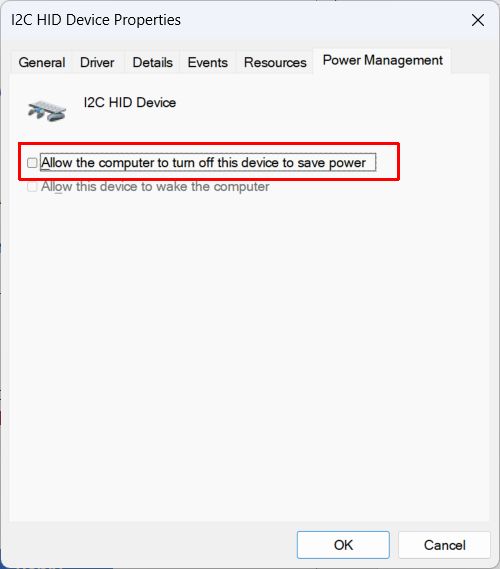
- Clear the checkbox named Allow the computer to turn off this device to save power.
- Click OK.
Tip: In same cases you may need to disable the device and then re-enabled the device for the changes to take effect. - Close the Device Manager.
This will disable the power management for the I2C device. Windows can no longer disable the device to save power.
Only leave the option disabled if it actually solves the problem. In normal circumstances, all devices with power management options should be allowed to be disabled by Windows when it is switched to a power-saving mode.
Fix I2C HID Device Code 10
A Code 10 – “This device cannot start” error means Windows was unable to start the device successfully.
With HID-over-I2C hardware specifically, Microsoft documents that Code 10 can occur when communication between Windows and the device fails during the device-enumeration sequence. That means Code 10 isn’t necessarily proof that the HIDI2C.sys file itself is missing or damaged.
Start with the simpler fixes:
- Restart Windows.
- Check Windows Update for driver updates.
- Update the device through Device Manager.
- Install the appropriate chipset/I2C/Serial IO and input-device drivers from your PC manufacturer.
- Uninstall and reinstall the device as described below.
If the error remains, also check for BIOS/UEFI and chipset updates specifically provided by your computer manufacturer for your exact model.
For other device errors, look at the article on device error codes.
Uninstall I2C HID Device for reset
If these steps do not fix your issue with the I2C HID device, try uninstalling the device in the Device Manager to allow Windows to detect and configure the device again.
Open Device Manager, locate I2C HID Device, right-click it, and select Uninstall device.
Restart the computer. Windows will attempt to detect the hardware again and reinstall the appropriate device support
Check the Human Interface Device Service
If the driver and device configuration appear correct but the device still isn’t functioning properly, you can also check the Windows Human Interface Device Service.
Normally, this service does not require any manual attention. But if the previous steps haven’t solved the problem:
- Right-click the Start button and select Computer Management.
- In the Computer Management window, select Services and Applications in the left-hand panel.
- Next, click Services.
- Now scroll down in the Services list until you see Human Interface Device Service.
- The Status should be set to Running. If not, right-click the Service and select Start in the popup menu.

Tip: The services window can also be accessed by typing “services” in the search box on the Taskbar and pressing Enter.
What Are HIDI2C.sys and hidi2c.inf?
If you’ve been searching for an I2C HID driver, you may have encountered filenames such as HIDI2C.sys or hidi2c.inf.
HIDI2C.sys is Microsoft’s built-in HID-over-I2C driver. Windows uses it to support compatible HID hardware communicating over an I2C bus. Microsoft describes it as an in-box Windows driver, meaning HID-over-I2C support is supplied as part of Windows rather than as a universal third-party driver you need to download separately.
The INF information allows Windows Plug and Play to associate compatible HID-over-I2C hardware with the appropriate driver. Windows loads the HID I2C class driver when the device information supplied through ACPI matches the required compatible identifier.
For that reason, if you’re searching for a hidi2c.inf driver download, avoid downloading a loose INF or SYS file from an unknown website.
Instead, use Windows Update or install the appropriate driver package supplied by your computer or hardware manufacturer.
Frequently Asked Questions
Is an I2C HID Device a touchpad?
It can be. Touchpads are common HID-over-I2C devices, but the name I2C HID Device does not specifically mean “touchpad.” Windows can use HID over I2C for touchscreens, keyboards, sensors, and other compatible HID hardware as well.
Where can I download the Microsoft I2C HID Device driver?
Windows includes Microsoft’s HID-over-I2C support. You should normally obtain Windows driver updates through Windows Update rather than downloading HIDI2C.sys from a third-party website.
If your PC requires additional manufacturer-specific drivers, download them from your PC or hardware manufacturer’s support site.
How do I install an I2C HID Device driver?
Start with Windows Update. You can also open Device Manager, right-click I2C HID Device, select Update driver, and let Windows search for a driver. If Windows cannot find the required driver, check the support page for your exact PC model.
Why is my I2C HID Device not showing in Device Manager?
Windows may not currently be detecting the device correctly, or a supporting controller/chipset driver may be missing or malfunctioning. Check Other devices, scan for hardware changes, install Windows updates, and check the manufacturer’s drivers for your computer.
Can I uninstall the I2C HID Device?
Yes, as a troubleshooting step you can uninstall the device through Device Manager and restart Windows so the hardware can be detected again. However, don’t permanently disable or remove a working I2C HID Device because it may represent hardware such as your touchpad or touchscreen.

